Framer vs Webflow: Which Is Better for Your Portfolio in 2026?
Two of the best no-code builders go head to head. Here’s which one actually deserves to host your portfolio.

Ridham Trivedi
Certified framer expert, 500+ templates sold
Summary
Your portfolio is the single most important marketing asset you own. It has one job: convince someone to hire you before they ever speak to you. So the tool you build it with matters — not because clients care, but because it determines how fast you can ship, how good it can look, and how much it costs to keep online.
In 2026, the two names that dominate this conversation are Framer and Webflow. Both are no-code, both are powerful, and both can produce a stunning portfolio. But they are built around very different philosophies — and for a portfolio specifically, one of them has a clear edge.
This comparison breaks down design freedom, learning curve, CMS, pricing, SEO, and performance — so you can pick the right tool before you sink a weekend into the wrong one.
Here’s a quick side-by-side of pricing and key benefits:
Framer | Webflow | |
|---|---|---|
Free plan | Yes — Framer subdomain + branding | Yes — webflow.io subdomain + branding |
Entry paid plan (custom domain) | $10/mo (Mini/Basic) | $15/mo (Basic site plan) |
CMS included | From lower tiers (Basic and up) | Requires CMS plan (~$23/mo) |
Learning curve | Days — feels like Figma | Weeks — HTML/CSS concepts required |
Built-in animations | Yes, one-click effects | Manual interactions setup |
Best for | Fast, visual portfolios | Complex CMS & client handoff |
That's the condensed version. For the full cost breakdown - including how the math changes for agencies running multiple client sites - see Framer vs Webflow pricing in 2026.
The Short Answer
For most designers, creatives, and freelancers building a portfolio in 2026, Framer is the better choice. It gets you from blank canvas to a polished, animated, live site dramatically faster, and the design experience feels like Figma rather than a CSS editor.
Webflow still wins in specific situations — deeply custom CMS structures, client handoff workflows, or when you need granular control over the generated markup. We’ll cover exactly when that matters below.
Framer vs Webflow at a Glance
Category | Framer | Webflow | Winner |
|---|---|---|---|
Design freedom | Figma-like canvas, built-in animations | Visual HTML/CSS editor | Framer |
Learning curve | A weekend | 1–2 weeks | Framer |
CMS | Simple, fast, included on lower tiers | More field types, more complexity | Tie |
Pricing | Cheaper entry with CMS included | CMS gated behind higher plans | Framer |
SEO & performance | Great defaults, zero config | Finer markup control | Tie |
Client handoff | Improving fast | Best-in-class Editor | Webflow |
Framer vs Webflow Search Trends: What the Data Says
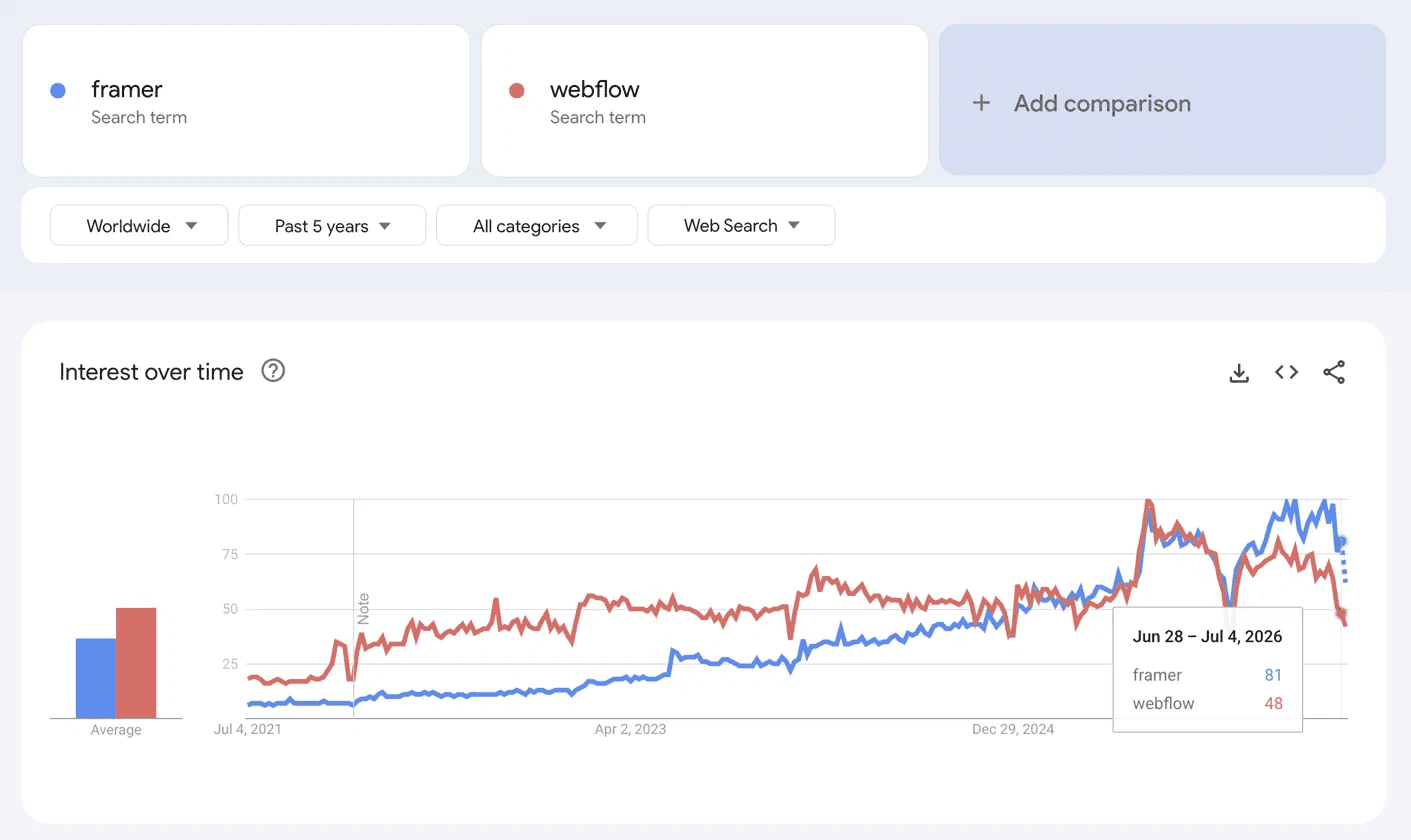
Source : Google trends
Google Trends data (worldwide, past five years) tells a story the spec sheets don’t. Webflow dominated search volume from 2021 through most of 2024, while Framer barely registered on the chart.
Then something shifted in late 2024. Framer’s interest curve surged sharply upward, crossed Webflow’s line, and never looked back.
By the week of June 28–July 4, 2026, Framer scores 81 versus Webflow’s 48 — a 69% lead. And this isn’t a blip; the trend has been directional for over 18 months straight.
Search interest isn’t the same as market share, but it’s a reliable proxy for where designer and developer curiosity is flowing. Right now, it’s flowing hard toward Framer.
If you’re building a portfolio in 2026, you’re also making a bet on which ecosystem has momentum, community growth, and template availability behind it. On that last point, the free Framer ecosystem has grown quickly - here are ten of the best free Framer templates for 2026.
Design Freedom: Where Framer Pulls Ahead
Framer’s canvas works the way designers think. You drag, resize, and layer elements freely, and the tool translates that into responsive layouts behind the scenes. If you’ve ever used Figma, you already know 80% of Framer. Scroll animations, page transitions, hover effects, and text effects are built in and take seconds to apply — no timeline editor, no interactions panel with nested triggers.
Webflow’s designer is essentially a visual interface for HTML and CSS. That’s its greatest strength and its greatest weakness. You get pixel-level control over the box model, flexbox, and grid — but you also need to understand those concepts to use it well. Building the same animated hero section takes minutes in Framer and often an hour of interaction wiring in Webflow.
For a portfolio — a site whose entire purpose is visual impression — the speed at which you can experiment with motion and layout is a decisive advantage. Verdict: Framer.
What Framer gives you out of the box:
Scroll, appear, and hover animations without a timeline editor
A Figma-style freeform canvas that outputs responsive layouts automatically
Page transitions and text effects applied in seconds, not sessions
Component variants for hover and open/closed states — no code required
Where Webflow still leads:
Pixel-level control of flexbox, grid, and the box model
A full class-based styling system that mirrors production CSS
Skills that transfer directly to hand-written HTML and CSS

Learning Curve and Speed to Launch
A realistic timeline for a first-time user building a 5-page portfolio: with Framer, most people ship in a weekend. With Webflow, expect one to two weeks, most of it spent learning Webflow University — an excellent resource, but a mandatory one.
Framer also lets you skip the blank-canvas problem entirely. Starting from a well-built template and swapping in your own work is the fastest legitimate path to a live portfolio — you can browse our free Framer template collection and have the structure done before lunch. Verdict: Framer, by a wide margin.
Milestone | Framer | Webflow |
|---|---|---|
First page live | 1–2 hours | 1–2 days |
5-page portfolio shipped | A weekend | 1–2 weeks |
Comfortable with the CMS | ~1 day | 3–5 days |

CMS, Case Studies, and Blogging
Portfolios live and die by case studies, so the CMS matters more than people expect. Framer’s CMS is clean and fast: collections, rich text, image galleries, and reference fields cover everything a project archive or blog needs. Setting up a “Projects” collection with detail pages takes about ten minutes.
Webflow’s CMS is more powerful on paper — more field types, multi-reference relationships, and conditional visibility rules. If your portfolio is really a content platform (say, hundreds of items with complex filtering), Webflow’s CMS scales further. For the typical 10–40 project portfolio, that extra power goes unused. Verdict: tie — Framer for simplicity, Webflow for complexity.
CMS capability | Framer | Webflow |
|---|---|---|
Field types | All portfolio essentials — rich text, galleries, references | Larger set incl. multi-reference and switches |
Time to set up a Projects collection | ~10 minutes | 30–60 minutes |
Scales best for | 10–40 project portfolios and blogs | Hundreds of items with complex filtering |
Conditional visibility | Basic filters | Advanced rules |
Pricing for Portfolio Sites in 2026
Both tools offer a free tier with branding and a subdomain — fine for testing, not for a professional portfolio. Once you connect a custom domain, Framer’s entry paid plan is slightly cheaper than Webflow’s equivalent CMS-enabled plan, and Framer includes its CMS on lower tiers, whereas Webflow gates CMS collections behind a more expensive site plan.
The hidden cost is time: every hour spent fighting your builder is billable time lost. Factoring that in, Framer’s total cost of ownership for a solo portfolio is meaningfully lower. Verdict: Framer.
What you’re paying for | Framer | Webflow |
|---|---|---|
Free tier | Subdomain + badge, CMS included | Subdomain + badge, 2-page limit |
Custom domain entry plan | Lower monthly cost | Slightly higher for equivalent features |
CMS access | Included on lower tiers | Gated behind CMS site plan |
Best value for a solo portfolio | ✓ Framer | — |
That’s the condensed version. For the full cost breakdown — including how the math changes for agencies running multiple client sites - see Framer vs Webflow pricing in 2026.
SEO and Performance
Both platforms generate fast, statically-served pages with solid Core Web Vitals, and both give you full control over titles, meta descriptions, open graph images, sitemaps, and redirects. Framer sites consistently score well on Lighthouse out of the box, and its automatic image optimization requires zero configuration.
Webflow offers finer control over the actual markup — custom attributes, schema embeds, and cleaner semantic structure if you know what you’re doing. For technical SEO practitioners that’s valuable; for a portfolio ranking on your name and “[your niche] designer” keywords, both are more than capable. Verdict: tie.
Framer’s SEO defaults are strong with zero configuration, and in 2026 that extends to AI search too - here’s how to add an llms.txt file to a Framer site so ChatGPT and Perplexity read your portfolio correctly.
Both platforms cover the technical SEO essentials a portfolio needs:
Per-page titles, meta descriptions, and open graph images
Automatic sitemaps, 301 redirects, and canonical tags
Statically served pages with strong Core Web Vitals scores
Responsive image optimization — fully automatic in Framer, configurable in Webflow
Semantic heading control (H1–H6) and alt text on every image
When Webflow Is the Better Choice
To be fair to Webflow, choose it if any of these apply: you build sites for clients and need Editor-style content handoff; your portfolio doubles as a complex content platform with heavy filtering; you want to learn transferable HTML/CSS concepts while you build; or you need custom code injection patterns Framer doesn’t support.
You build sites for clients and need Editor-style content handoff with granular roles
Your portfolio doubles as a content platform — hundreds of CMS items with layered filtering
You want to learn transferable HTML and CSS concepts while you build
You depend on custom attributes or code-injection patterns Framer doesn’t support
None of those describe the average designer shipping a personal portfolio — which is exactly why the general recommendation still lands on Framer.
Verdict: Which Should You Pick?
If your goal is a beautiful, animated, fast portfolio that’s live this week — pick Framer. If your portfolio is secretly a complex web application, or client handoff is part of your workflow — pick Webflow.
Ready to try the Framer route? Start with one of our free high-quality Framer templates — swap in your projects and you could be live today.
Frequently Asked Questions
Can I migrate my portfolio from Webflow to Framer later?
There’s no one-click migration, but Framer’s Figma import and HTML paste features make rebuilding faster than starting from scratch. CMS content can be exported from Webflow as CSV and re-imported into Framer collections.
Is Framer good enough for client work, or just personal sites?
Plenty of agencies now deliver client sites in Framer. Webflow’s Editor is still smoother for non-technical clients editing content, but Framer’s CMS and workspace roles have closed most of the gap.
Do employers or clients care which tool my portfolio is built with?
Almost never. They care that it loads fast, looks intentional, and presents your work clearly. Choose the tool that lets you achieve that with the least friction.
Which is cheaper if I just want a one-page portfolio?
For a single page with a custom domain, both offer comparable entry plans, but Framer’s lower tiers include more (CMS, redirects, and analytics) — making it the better value for most solo portfolios in 2026.
Can I use custom code in Framer and Webflow?
Both support custom code embeds and site-wide head/body code on paid plans. Webflow goes further with custom attributes on individual elements, which matters for advanced schema markup or third-party integrations. For analytics snippets, chat widgets, and font embeds — the things most portfolios actually need — the two are equivalent.
How well does each tool import designs from Figma?
Framer has an official Figma plugin that copies frames across with layout, images, and text largely intact — you then wire up responsiveness and CMS bindings. Webflow has third-party options, but you’ll usually rebuild from scratch using your Figma file as reference. If your workflow starts in Figma, this alone can save days.
webflow vs framer for portfolio
Framer is often the simpler choice for a visually led portfolio that needs to launch quickly. Webflow can be a better fit when you need more advanced structured content or technical controls. Choose the tool that matches your workflow and portfolio requirements.
framer vs webflow for portfolio
For many designers, Framer is easier for building a polished portfolio from a Figma-like workflow. Webflow is worth considering when you need deeper CMS flexibility or more technical site control.