How to Add an llms.txt file to Your Framer Site in 2026
Your website already speaks to humans. It's time to introduce it to AI.

Ridham Trivedi
Certified framer expert, 500+ templates sold

Summary
Search is changing. When someone asks ChatGPT, Perplexity, or Google’s AI Overview about your industry, your competitors, or even your brand name — the answer doesn’t come from a list of ten blue links. It comes from a language model that has already digested the internet and decided what matters.
The question is: did it understand your site correctly?
That’s the problem llms.txt was built to solve. It’s a small, plain-text file you host at the root of your domain - a kind of curated reading list for AI. And if you’re building on Framer, adding one just became remarkably simple.
This guide covers what llms.txt actually is, why it matters (and where the hype outpaces reality), and the exact steps to get one live on your Framer site today.
The 30-Second Version: What Is llms.txt?
An llms.txt file is a plain-text document, written in Markdown, that lives at yourdomain.com/llms.txt. Its job is straightforward: tell AI systems — large language models, AI search engines, autonomous agents — which pages on your site are the most important and what your site is actually about.
The format is defined by an open proposal at llmstxt.org. It’s intentionally minimal - a title, a description, and a structured list of links grouped under Markdown headings.
Here’s what a basic one looks like:
How llms.txt Differs from robots.txt and sitemap.xml
If you’ve done any SEO work, you already use files that communicate with machines. It helps to understand where llms.txt fits alongside them, because they do fundamentally different jobs.
robots.txt is a gatekeeper. It tells crawlers which parts of your site they’re allowed to access and which parts are off-limits. It controls access, not context.
sitemap.xml is an inventory. It gives search engines a complete list of every URL on your site, along with metadata like when each page was last updated. It helps with discovery.
llms.txt is a curator. It doesn’t control access or list every URL. Instead, it highlights the pages that best represent your site and provides human-readable descriptions of what each one contains. It provides context and priority.
You don’t choose between them — they work together. A well-configured Framer site in 2026 ideally has all three: robots.txt managing access, sitemap.xml handling discovery, and llms.txt shaping how AI systems interpret what they find.
How to Add llms.txt to Your Framer Site?
On March 23, 2026, Framer shipped a feature called Static Files, which consolidated all well-known file management into a single Files tab inside the Domains section of your workspace. This is now the only correct path.
Here’s the current workflow, step by step.
Prerequisites
You need a paid Framer plan. Static file hosting is available on Pro, Launch, and Enterprise plans. The Files tab won’t appear on free plans. If you’re unsure which plan you want to buy ,check our framer pricing blog for 2026.
You also need a custom domain connected to your Framer project.
Step 1 - Create Your llms.txt File
Open any text editor (VS Code, Sublime Text, TextEdit, Notepad — it doesn’t matter) and create a new file. Write your content following the Markdown structure from the llmstxt.org spec:
Save it as llms.txt. Not llms.md, not LLMS.txt — the filename matters.
What to include: your homepage, core service or product pages, about page, pricing, key blog posts or guides, and documentation. Focus on the pages that best represent your brand and expertise.
What to leave out: tag archives, pagination pages, login screens, admin routes, temporary landing pages, and anything you wouldn’t want an AI quoting back to a potential customer.
Step 2 - Open the Domains Section in Framer
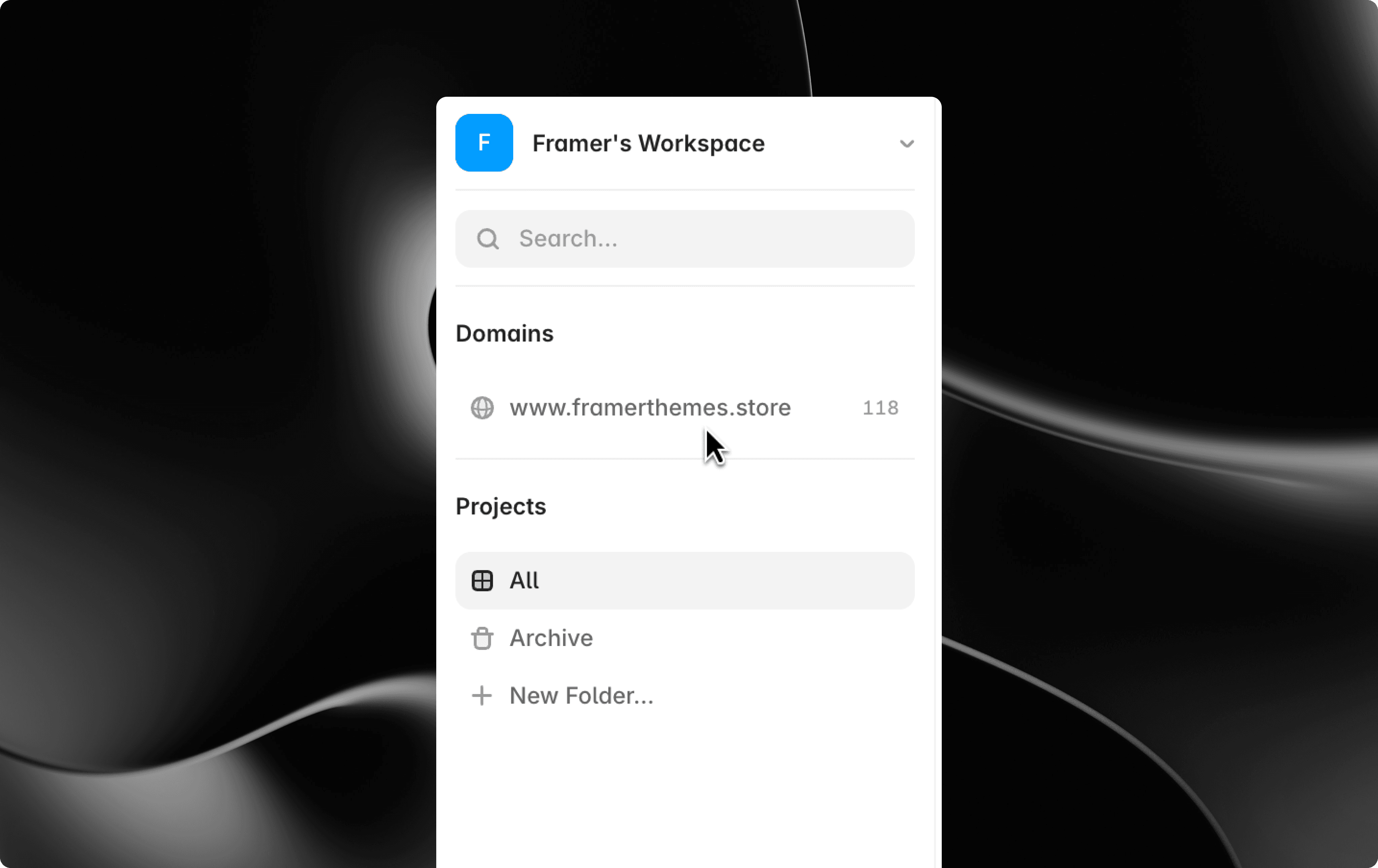
Log in to your Framer workspace (not the project editor - the workspace dashboard). In the left sidebar, find the Domains section. Your connected domain appears directly beneath it - for example, www.yourdomain.com.
Click the domain name itself. The word “Domains” above it is just a section label and isn’t clickable. You need to click the actual domain row to open the configuration panel.
Step 3 - Navigate to the Files Tab
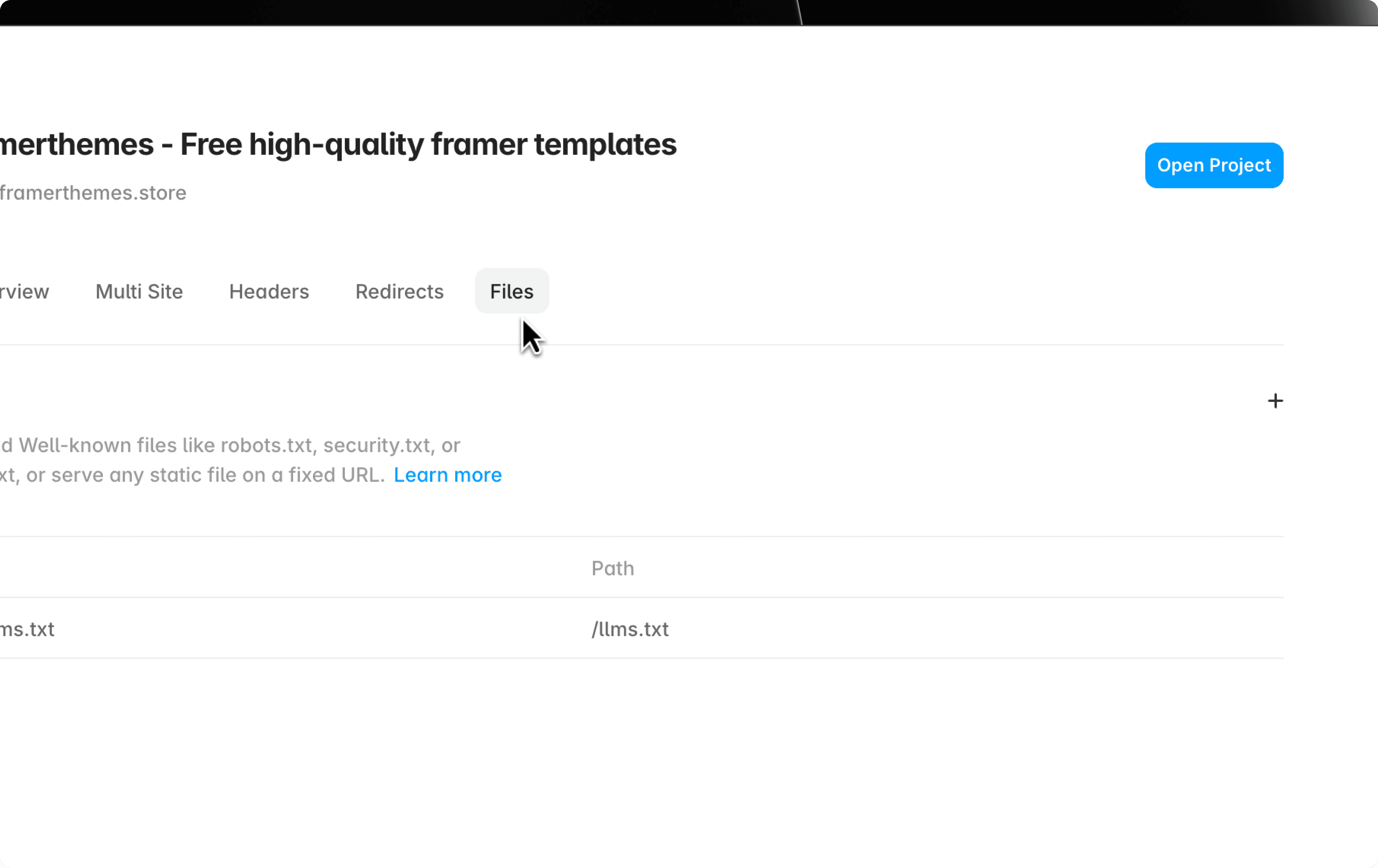
A panel opens with several tabs across the top: Overview, Files, and others like Multi Site, Headers, and Redirects. Click Files.
The description reads: “Upload well-known files like robots.txt, security.txt, or llms.txt, or serve any static file on a fixed URL.”
Step 4 - Upload Your llms.txt File
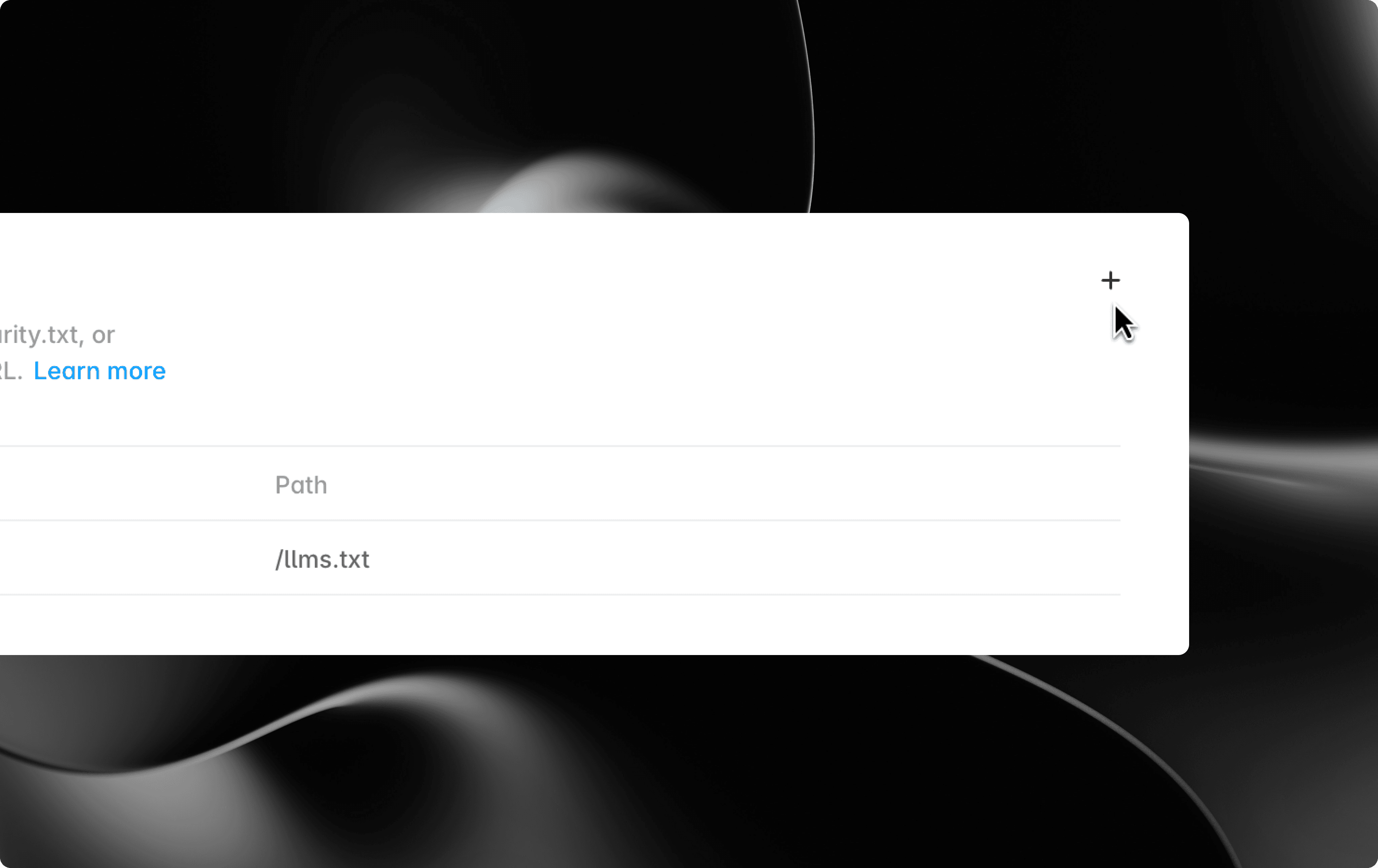
Click the “+” button in the Files tab and select your llms.txt file from your computer. Once uploaded, Framer automatically sets the serving path to /llms.txt. Don’t change it - that root path is exactly where AI systems expect to find it.
Step 5 - Publish Your Site
The uploaded file won’t go live until you publish. There’s no publish button on the dashboard itself - you need to open the Framer project that’s connected to this domain and publish from inside the project editor.
Step 6 - Verify
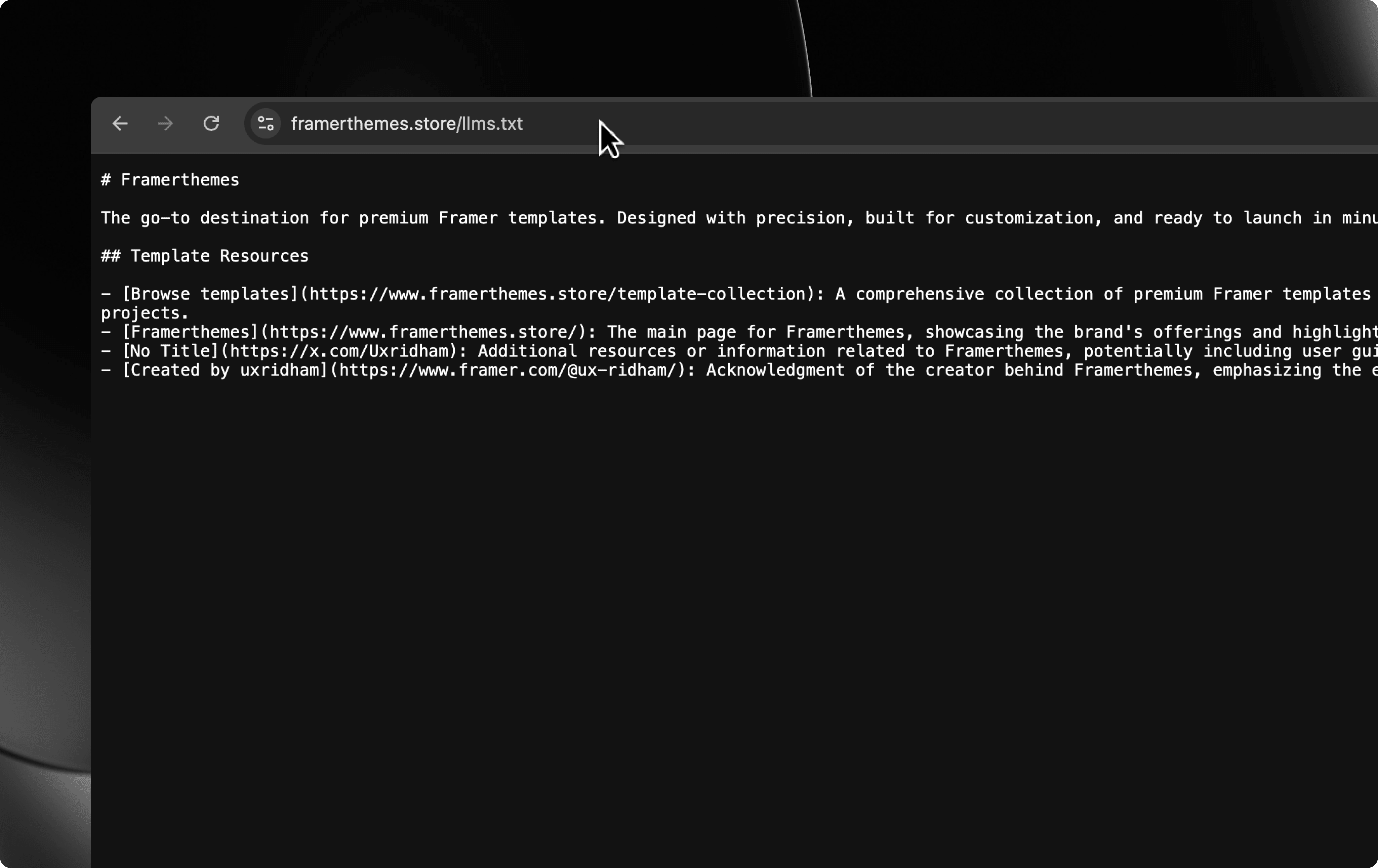
Open a browser and navigate to yourdomain.com/llms.txt. You should see the plain-text contents of your file. If you get a 404, double-check that you published after uploading, and that the file appears in the Files tab.
Tips for Writing a Strong llms.txt
Be specific, not promotional. AI systems don’t respond to marketing language the way humans do. Instead of “We deliver world-class solutions,” write “B2B SaaS design agency focused on brand identity and product websites.” Clarity beats persuasion.
Prioritize ruthlessly. If you have 50 pages, don’t list all 50. Pick the 8–12 that genuinely define your business. The whole point of the file is curation - a curated list of everything is just a sitemap.
Group logically. Use Markdown H2 headings to organize links into meaningful categories - Pages, Resources, Documentation, Products. This structure helps AI systems understand the relationships between your pages, not just their existence.
Add descriptions to each link. A bare URL tells an AI nothing it can’t discover by crawling. The value of llms.txt is the context you add: what each page contains and why it matters. Even a single sentence per link makes a significant difference.
Keep it current. If you launch a new service page or retire an old product, update your llms.txt to match. An outdated file is worse than no file at all, because it actively misleads the systems reading it.
Frequently Asked Questions
Does llms.txt replace my sitemap or robots.txt?
No. Each file serves a different purpose. Your sitemap handles URL discovery for search engines. Your robots.txt manages crawler access permissions. Your llms.txt curates content specifically for AI comprehension. Use all three.
Will adding llms.txt improve my Google rankings?
Not directly. Google has not indicated that llms.txt is a ranking signal. Its value lies in how AI systems - including AI-powered search features - interpret and represent your site, not in traditional SEO ranking.
Is there a plugin that generates the file automatically?
There’s a third-party LLM Text Generator plugin on the Framer Marketplace that can scaffold the file from your site structure. For most sites, though, writing it manually takes ten minutes and gives you more control over what gets included.
Do I need to update it every time I publish a new blog post?
Not every post. Update your llms.txt when you add or remove cornerstone content — new service pages, major guides, pricing changes. Routine blog posts generally don’t need to be individually listed unless they’re central to your brand’s expertise.
What if I’m on Framer’s free plan?
You’ll need to upgrade. The Files tab - and static file hosting in general - requires a paid plan. Check framer.com/pricing for current plan details.
where to place the llm.txt file for the website
Place the file at the root of the published domain: https://yourdomain.com/llms.txt. The standard filename is llms.txt, not llm.txt.
where to submit llm.text file
You do not submit the file anywhere. Publish it at your domain root as llms.txt; the filename is not llm.text.
llms.txt framer
On Framer, publish llms.txt as a static file at your domain root. Keep it concise and link to the most useful pages for AI systems to understand.